> ## Documentation Index
> Fetch the complete documentation index at: https://docs.arkata.mt/llms.txt
> Use this file to discover all available pages before exploring further.
# Uploading Documents
> How to upload files to your projects in Arkata.
# Uploading Documents
Documents are files attached to your projects — drawings, submissions, correspondence, photos, or anything else you need to keep with the project record.
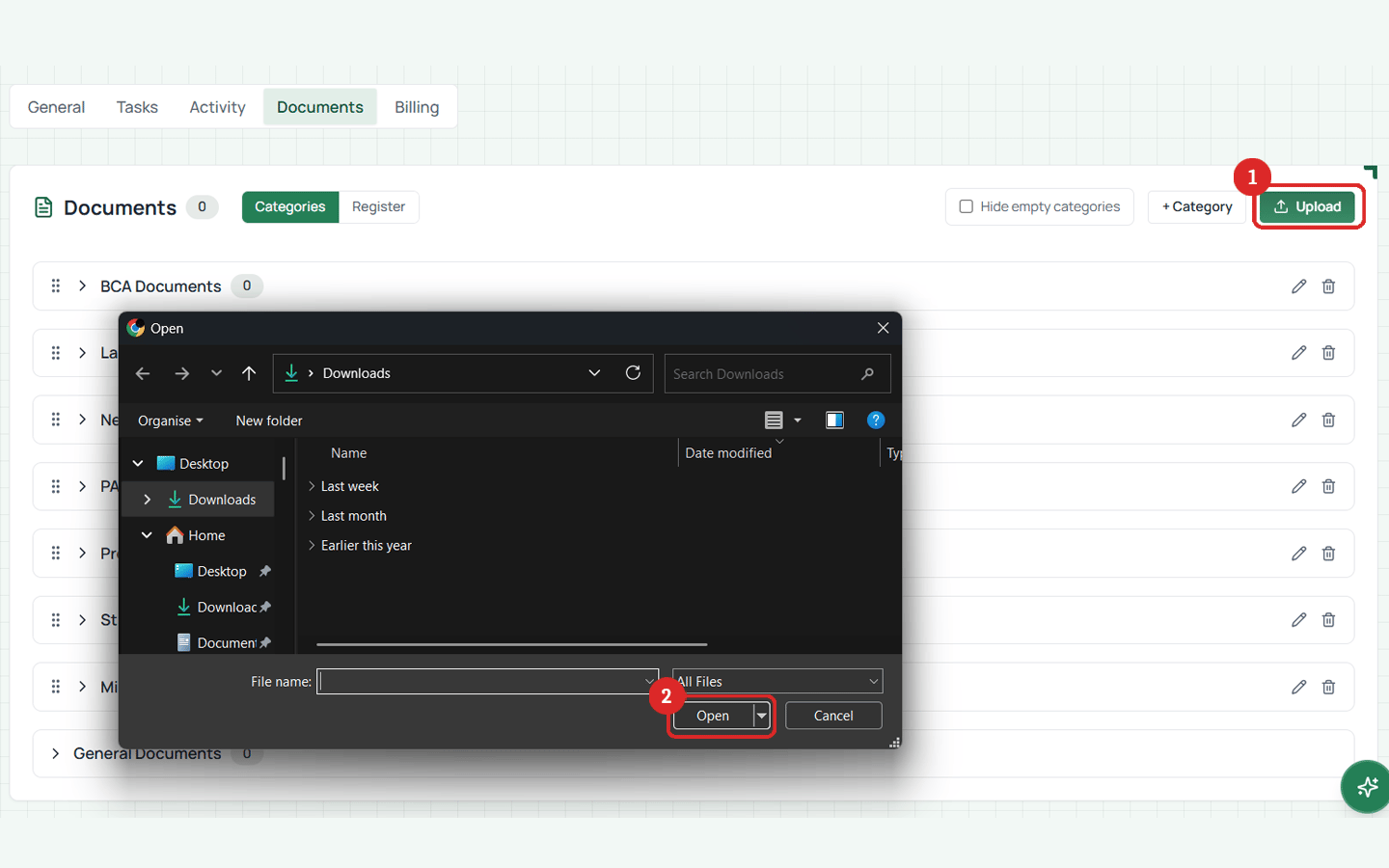 ## How to upload
1. Open a project
2. Go to the **Documents** tab
3. Click **Upload**
4. Select the file from your computer
5. Choose a **category** (optional but recommended — see [Categories](/documents/categories))
6. Wait for the upload to complete
7. The document appears in your project's document list
## What happens behind the scenes
When you upload:
1. Arkata creates a document record
2. Your browser uploads the file directly to secure cloud storage
3. Once the upload finishes, Arkata confirms it and the document becomes available for download
Upload links expire after 10-15 minutes. If your upload takes too long (very large file on slow connection), you may need to try again.
## Downloading documents
Click on any document in the list to download it. Download links are generated on-demand and are valid for a few minutes.
## Supported file types
Arkata accepts any file type. There's no restriction on format — PDFs, images, CAD files, Word documents, spreadsheets, and more are all fine.
## Document metadata
Each document shows:
* File name
* File size
* Upload date
* Category (if assigned)
* Version number
* Who uploaded it
## How to upload
1. Open a project
2. Go to the **Documents** tab
3. Click **Upload**
4. Select the file from your computer
5. Choose a **category** (optional but recommended — see [Categories](/documents/categories))
6. Wait for the upload to complete
7. The document appears in your project's document list
## What happens behind the scenes
When you upload:
1. Arkata creates a document record
2. Your browser uploads the file directly to secure cloud storage
3. Once the upload finishes, Arkata confirms it and the document becomes available for download
Upload links expire after 10-15 minutes. If your upload takes too long (very large file on slow connection), you may need to try again.
## Downloading documents
Click on any document in the list to download it. Download links are generated on-demand and are valid for a few minutes.
## Supported file types
Arkata accepts any file type. There's no restriction on format — PDFs, images, CAD files, Word documents, spreadsheets, and more are all fine.
## Document metadata
Each document shows:
* File name
* File size
* Upload date
* Category (if assigned)
* Version number
* Who uploaded it