

Link another project
- Open either project and stay on the General tab.
- In Project Details, find Linked Projects and click Add.
- Search by project name, internal reference or PA reference, then select the project.
- Click Link.
PA/NNNNN/YY). If no project is found, choose Add as external project. Arkata saves the PA reference with the current project and shows an External project label in Linked Projects. Click Open in eApps to open that case. External projects are reference-only and do not appear in Arkata project search or the Projects list.
The linked project appears with its reference, project type and name. If it has a PA reference, that appears below the name. Click the reference to open the other project.
See linked projects on both sides
On the PA, the Linked Projects section can show its Minor Amendment and multiple CMP records together: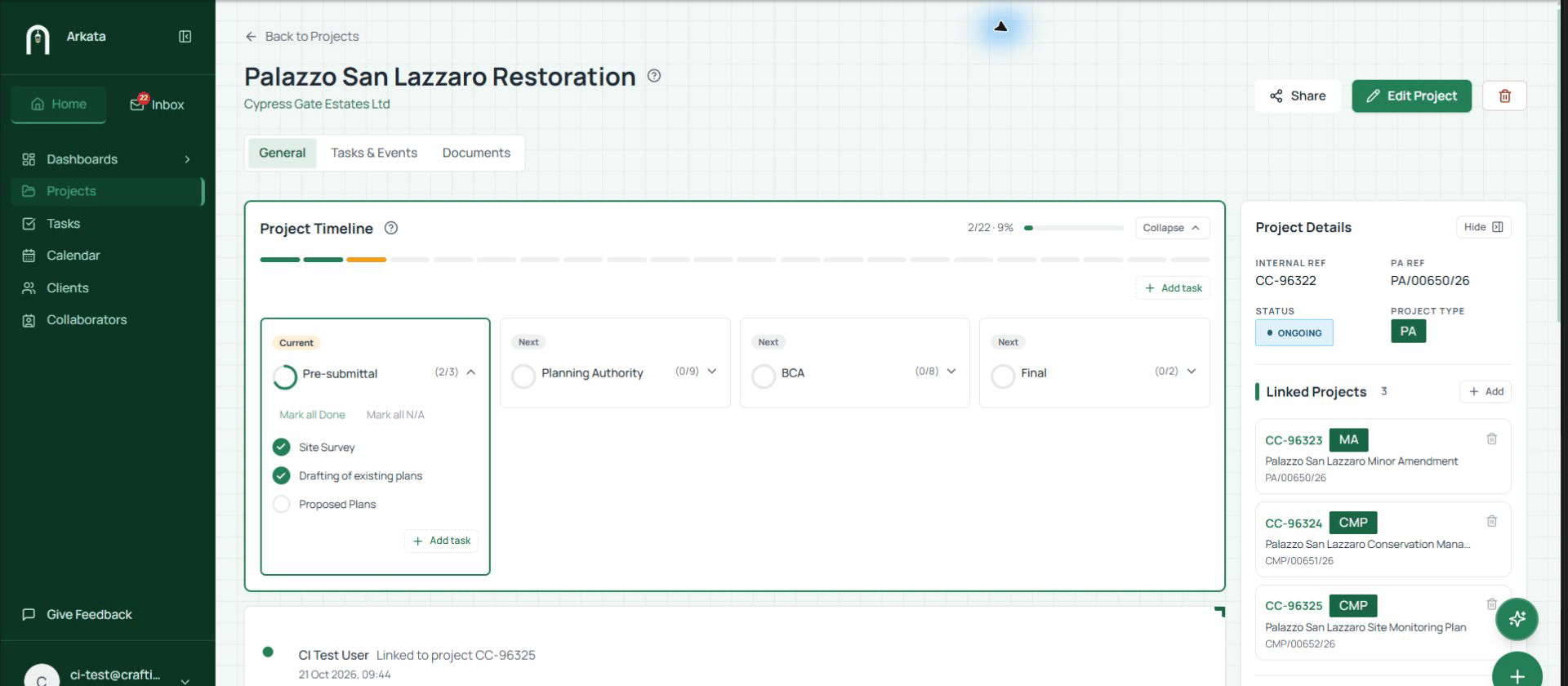
PA project with its Minor Amendment and two CMP projects linked
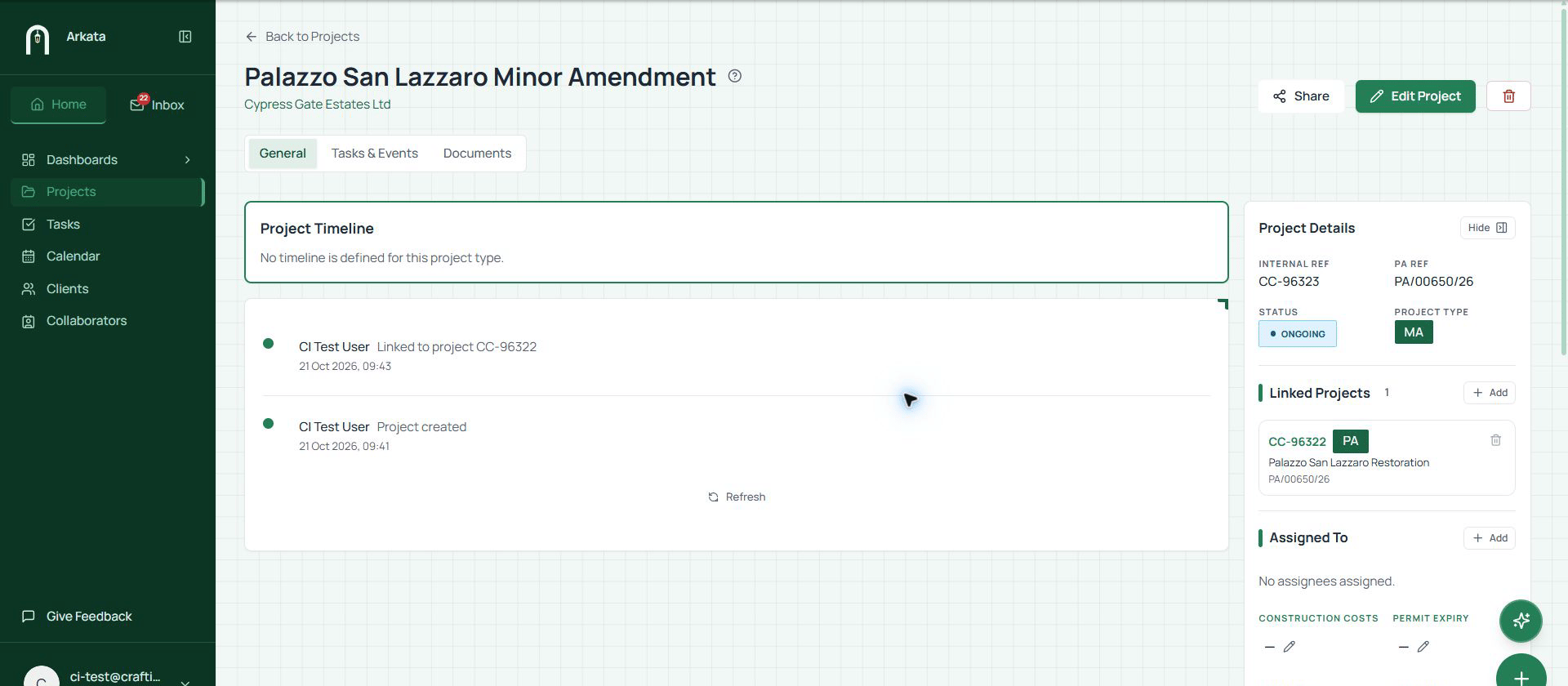
Minor Amendment linked to its PA
Remove a project link
Click the bin icon beside the project and confirm Remove Link. This removes the connection from both project pages; neither project is changed or deleted.Next steps
The project page
Find Linked Projects and the other project details.
Project references
Learn how to find projects by their references.